Extensions
AutoEasy can load extensions from a folder when a session starts. This works with Edge, Brave, and Opera. Chrome must install from the Chrome Web Store on each profile; it cannot load from a folder.
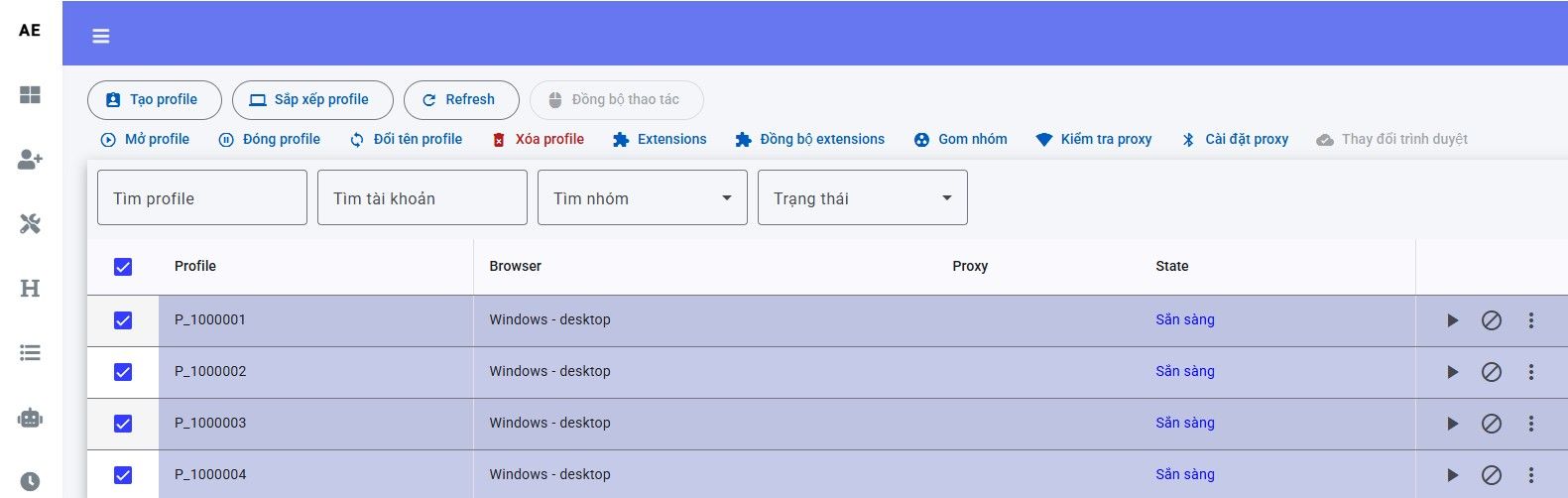
Load extensions from a folder
- Select the profiles that should get the extensions.
- Click Extensions.
- Point to the folder (for example
D:\Extension_Group_1). - Click Save.
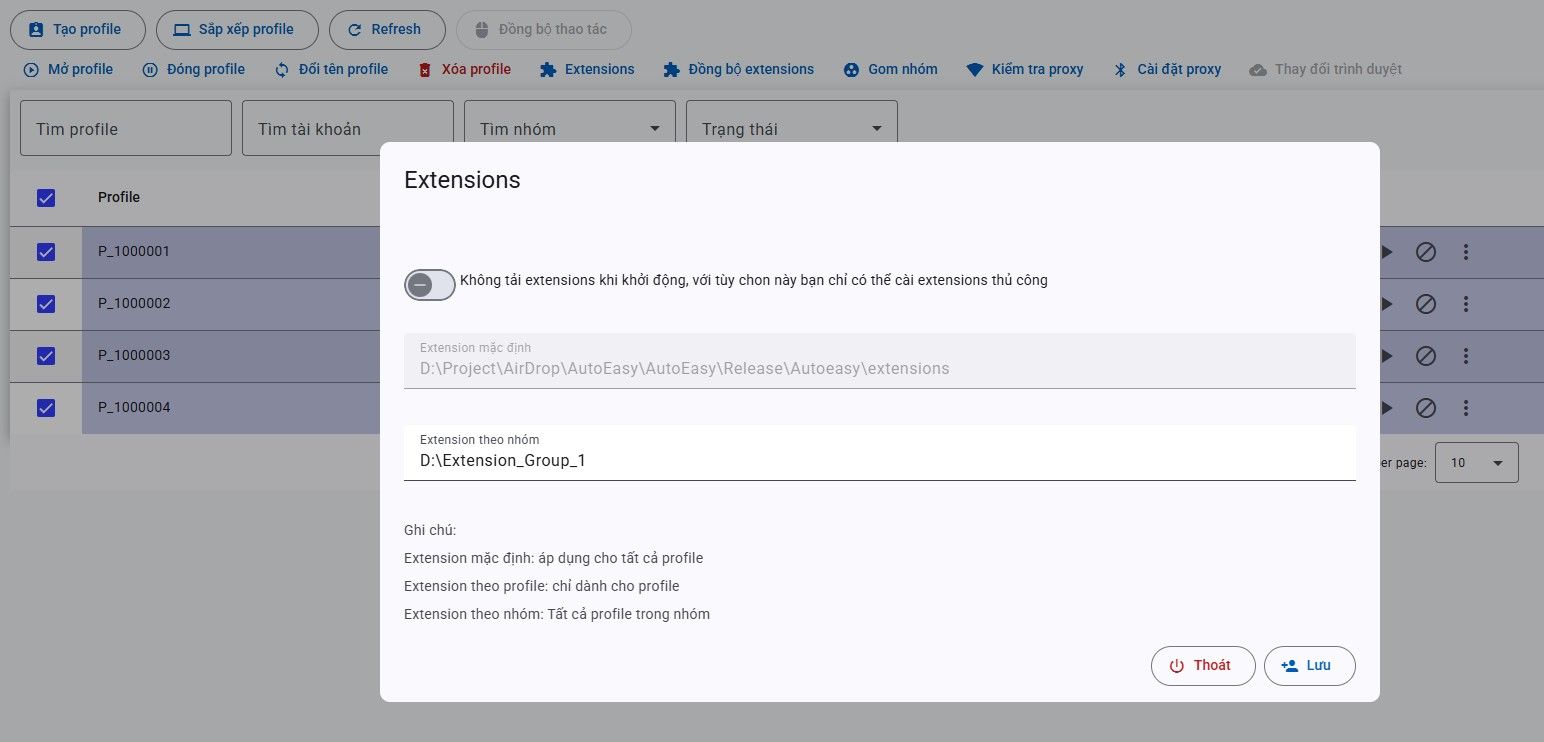
On each launch, a profile loads extensions from three places (combined):
- The app-wide extension folder — captcha solvers, downloaders, anything shared.
- The per-profile folder — for example a wallet bound to that account.
- The group folder you just chose.
Sync extensions across profiles
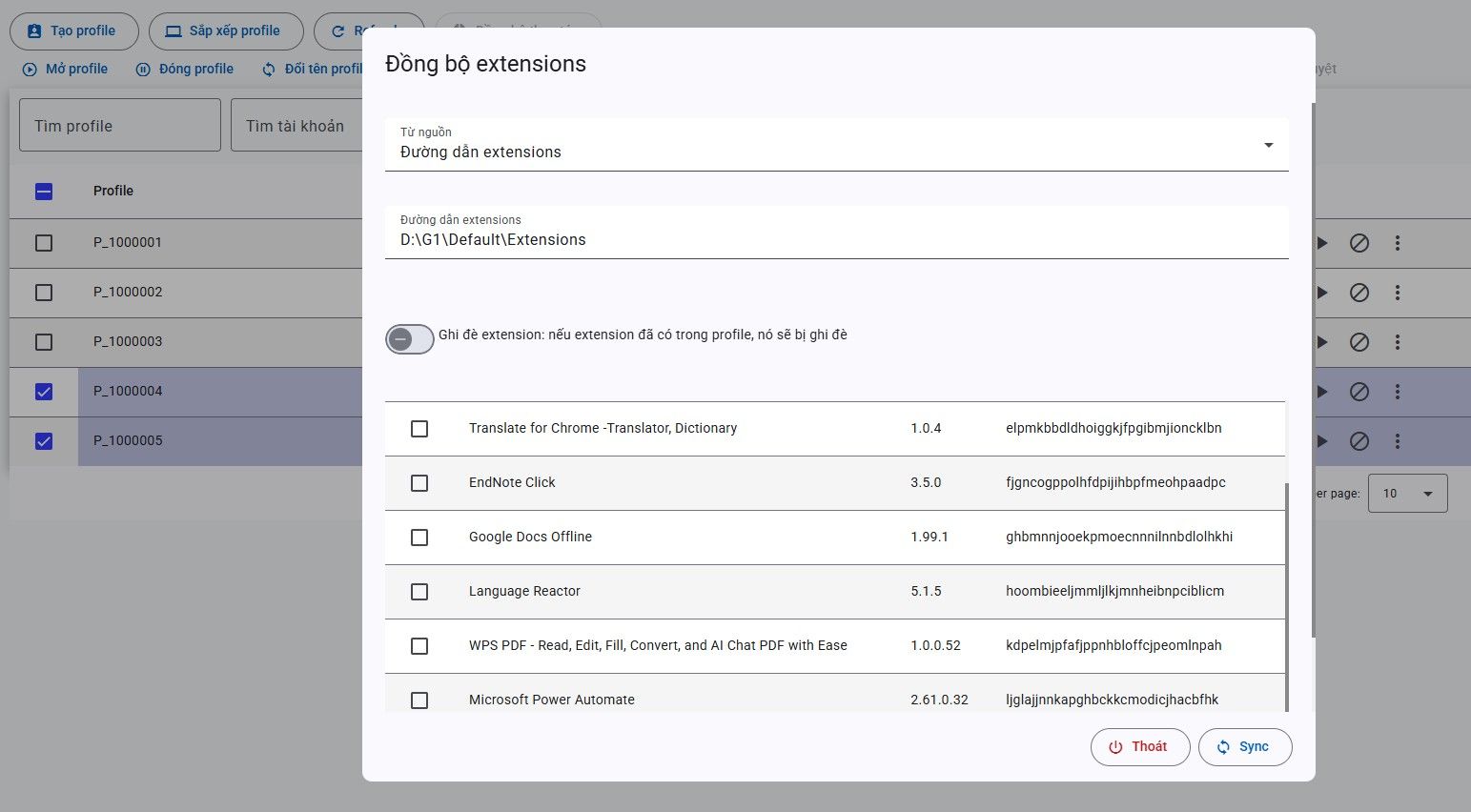
Install on one sample profile, then copy to others with Sync Extension instead of repeating the store install.
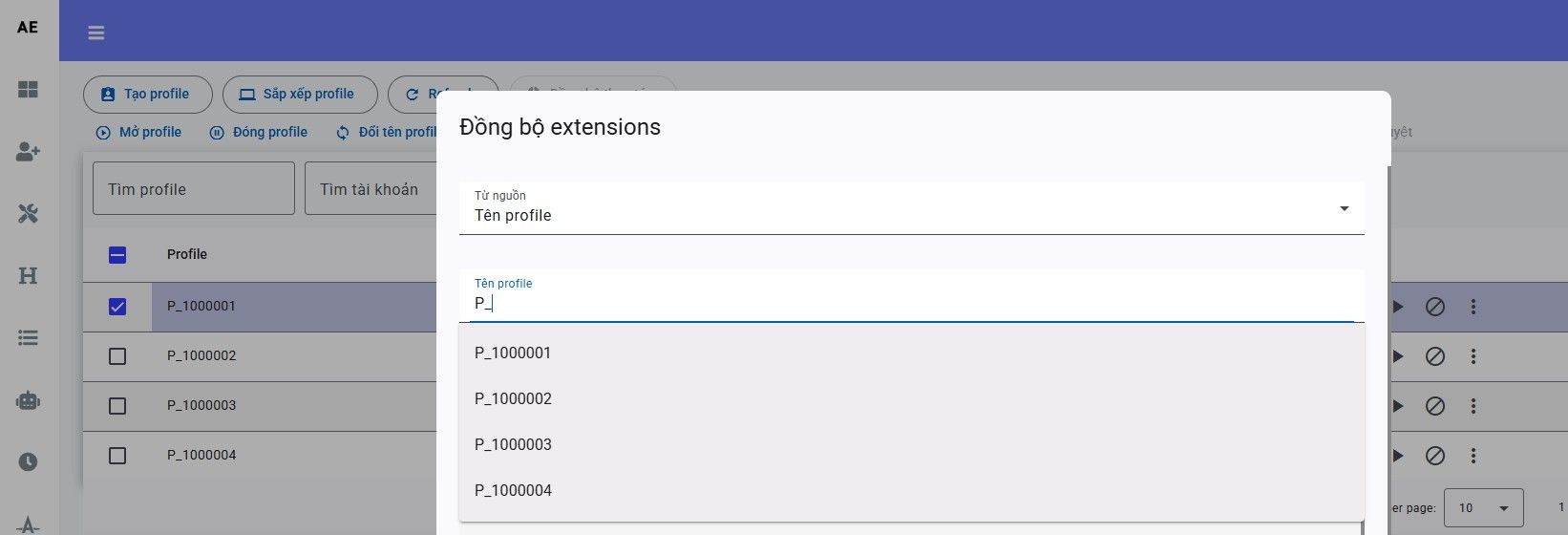
Source: profile name
- Set source to Profile name, type, and pick the sample profile.
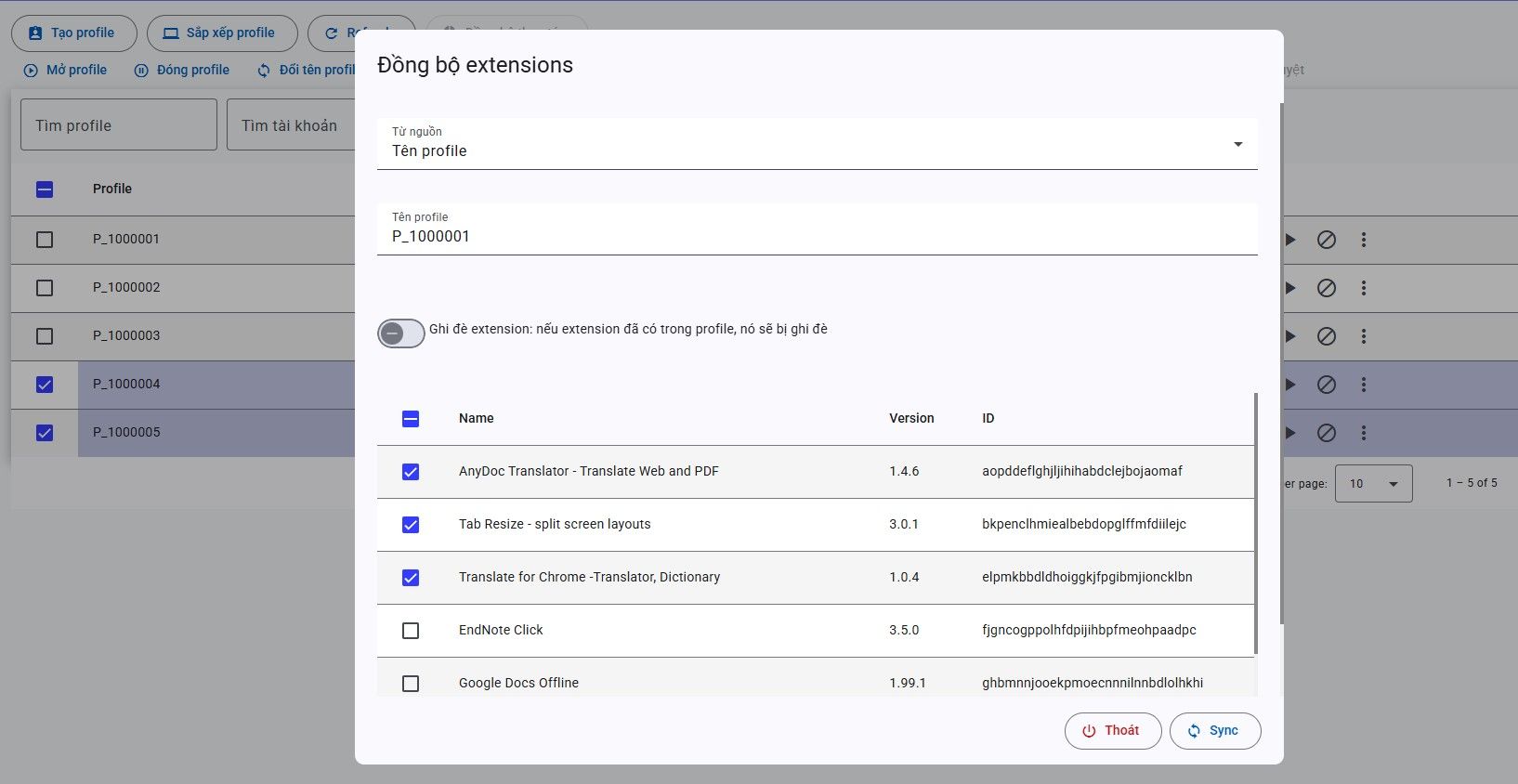
- Tick the extensions to copy.
- Pick target profiles (for example P_1000004, P_1000005).
- Click Sync.
Source: folder path
- Set source to Extension path.
- Enter the folder of unpacked extensions.
- Tick what to sync, then Sync.
This copies extension files. It is not sync actions (live clicks and typing).