Installation
Install AutoEasy on 64-bit Windows. Do this in order: install Visual C++, download the app, unzip, open the exe, then activate.
Windows only. Unzip the app to drive D: (or any drive other than C:) so a Windows reinstall does not wipe your data.
Step 1 — Install Visual C++ Redistributable
Install both packages. Missing either one can stop the app from opening.
First redistributable. Download from one source, then install.
Download vcredist_x64 from Google Drive
Second redistributable. Install the same way.
Download VC_redist.x64 from Google Drive
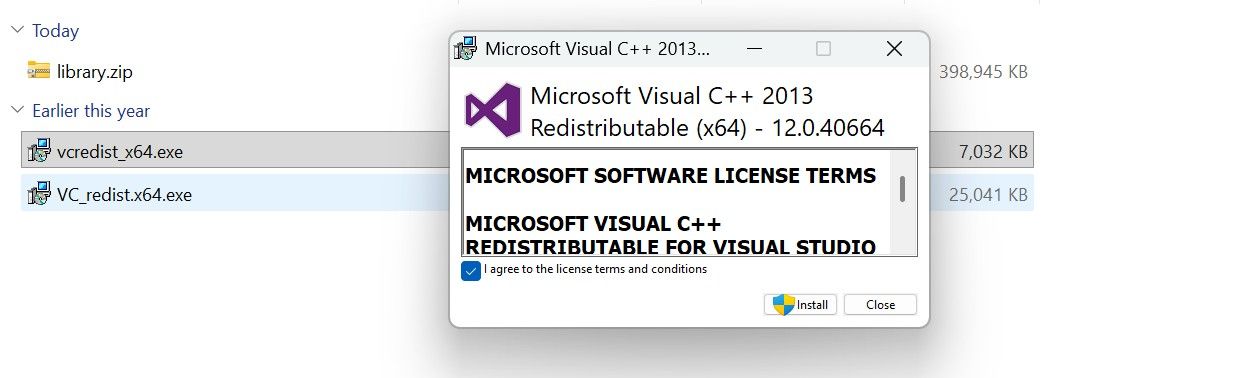
- Open vcredist_x64.exe.
- Tick I agree to the license terms and conditions, then click Install.
- Repeat for VC_redist.x64.exe.
Step 2 — Download AutoEasy
Download the zip, copy it to your install folder, then extract it.
Download AutoEasy from Google Drive
Windows 11 25H2 may block the app on first launch (publisher check, not a virus). Turn off Smart App Control: Windows Security → App & browser control → Smart App control → Off.
Step 3 — Extract and open the app
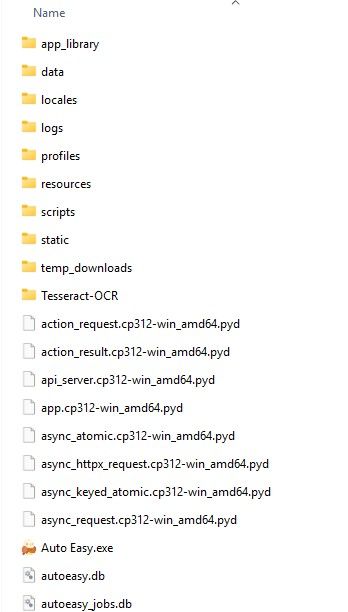
After downloading you should have:
vcredist_x64.exeVC_redist.x64.exeAutoeasy_{version}.zip
- Copy the zip to the folder you want (for example
D:\Autoeasy). - Extract it. You should see an Autoeasy folder.
- Open Auto Easy.exe.
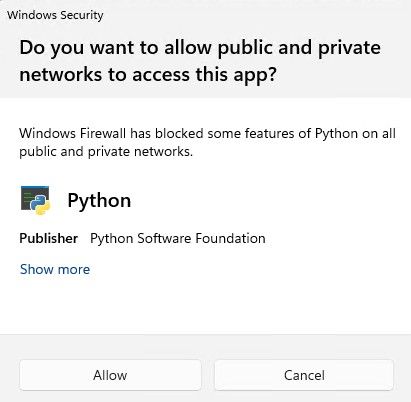
- If Windows asks for network access, click Allow.
Step 4 — Start a trial or add a license
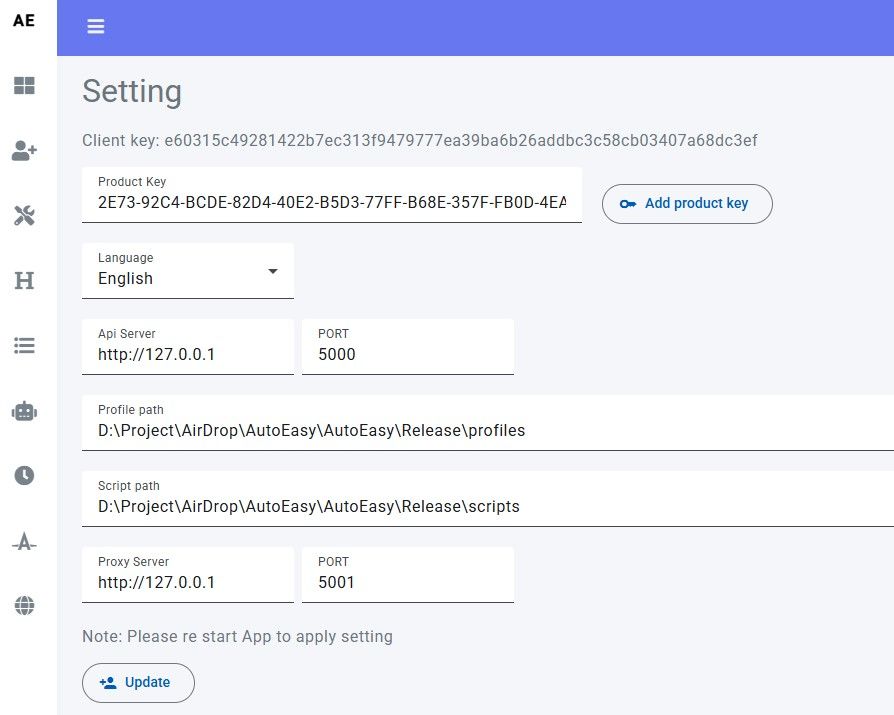
- In the app, open Setting. Click Trial 15 days for a 15-day trial.
- Each license is tied to one computer. Create an account, then buy a plan on the plans page.
- Paste the key into Product key and click Add product key.
Optional — Isolate Edge profiles
If this PC is signed into Microsoft / Outlook on the system Edge, new Edge profiles may sync that login. To keep them separate:
- Option 1 (recommended): create a local Windows user with no Microsoft account.
- Option 2: reinstall Windows and create an offline account.
- Option 3: sign out of all Microsoft accounts on system Edge.
Create a local user (Command Prompt as Administrator):
net user LocalUser * /add
net localgroup administrators LocalUser /add
Restart, sign in as LocalUser. If login still syncs, delete old Edge profiles and retry option 1 or 2.
Optional — Chromium browsers for bulk extensions
The app supports Chromium-based browsers. For bulk extension loading, Chrome is harder than these options:
- Brave
- Ungoogled Chromium (recommended)
- Thorium
Chrome currently requires installing extensions on each profile; it cannot load them from a folder. See Extensions.
Optional — Turn off save-password prompts
Password-save popups interrupt scripts. Fast path: Command Prompt as Administrator, run each line:
reg add "HKLM\SOFTWARE\Policies\Microsoft\Edge" /v "PasswordManagerEnabled" /t REG_DWORD /d 0 /f
reg add "HKLM\SOFTWARE\Policies\Google\Chrome" /v "PasswordManagerEnabled" /t REG_DWORD /d 0 /f
reg add "HKLM\SOFTWARE\Policies\BraveSoftware\Brave" /v "PasswordManagerEnabled" /t REG_DWORD /d 0 /f
reg add "HKLM\SOFTWARE\Policies\CocCoc" /v "PasswordManagerEnabled" /t REG_DWORD /d 0 /f
Or edit by hand: Windows + R → regedit → HKEY_LOCAL_MACHINE\SOFTWARE\Policies\Microsoft → create an Edge key if missing → DWORD PasswordManagerEnabled = 0.
Installation is done. Next: Create a group.